

What arrays are and why we need them
In JavaScript, an array is a specialized object used to store multiple values in a single variable. Unlike standard variables that hold one value (like a single name), an array serves as an ordered collection of items, where each item is called an element and has a numeric position known as an index.
Key Characteristics of JavaScript Arrays
Zero-Indexed: The first element is at index
0, the second at index1, and so on.Dynamic Size: They can grow or shrink automatically as you add or remove elements.
Heterogeneous: A single array can store a mix of different data types, such as strings, numbers, objects, or even other arrays.
Built-in Methods: They come with powerful built-in functions like
push(),pop(),map(), andfilter()for easy data manipulation.
Why We Need Arrays
Arrays are essential for writing clean, efficient, and scalable code
Code Organization: Without arrays, storing a list of 100 items would require 100 separate variables (e.g., item1, item2, etc.). An array allows you to group these into one variable, such as items.
Efficient Data Processing: Because arrays are ordered and indexed, you can easily use loops to perform the same action on every item (e.g., calculating a total or searching for a specific value).
Fast Access: Arrays provide direct access to any element if you know its index, which is highly efficient for data retrieval.
Foundation for Complex Data: Most modern web applications receive data from servers as lists (e.g., a list of users or products), which are naturally represented as arrays of objects.
How to create an array
The most common and recommended way to create an array in JavaScript is by using array literal notation with square brackets [].
1. Array Literal (Recommended)
This method is simple, readable, and generally faster.
Empty array:
const arr = [];With values:
const fruits = ["Apple", "Banana", "Cherry"];Mixed types: JavaScript arrays can hold different data types at once, such as strings, numbers, and booleans.
const mixed = ["Hello", 42, true];
2. Array Constructor
You can also use the new Array() constructor, though it is less common.
With values:
const colors = new Array("Red", "Green", "Blue");With length: Passing a single number creates an array with that many empty slots.
const emptySlots = new Array(5); // Creates an array with length 5
3. Modern Static Methods
ES6 introduced powerful static methods for specific use cases:
Array.from(): Creates an array from an array-like or iterable object (like a string or a Set).
const letters = Array.from("abc"); // ["a", "b", "c"]
Array.of(): Creates an array from any number of arguments, regardless of type or number.
const numbers = Array.of(7); // [7](Unlikenew Array(7)which creates 7 empty slots)
4. Creating and Filling
To create an array of a specific size filled with a default value:
Using .fill():
const filled = new Array(3).fill(0); // [0, 0, 0]Range of numbers: Use
Array.from()with a mapping function.const range = Array.from({ length: 5 }, (_, i) => i + 1); // [1, 2, 3, 4, 5]
Accessing elements using index
In JavaScript, accessing elements by index primarily applies to arrays and strings. You can use standard bracket notation or modern methods like .at().
1. Basic Indexing with Square Brackets []
The most common way to access an element is by placing its index in square brackets immediately after the array name.
Zero-Based: JavaScript is zero-indexed, meaning the first element is at index
0and the last is atarray.length - 1.Syntax:
const item = myArray[0];Behavior: If you provide an index that doesn't exist, it returns
undefined.
javascript
const colors = ["Red", "Green", "Blue"];
console.log(colors[0]); // "Red"
console.log(colors[1]); // "Green"
2. Using the .at() Method
The Array.prototype.at() method is a modern alternative (ES2022) that supports negative indexing.
Positive Indexes: Behaves exactly like square brackets.
Negative Indexes: Allows you to count back from the end. For example,
-1returns the last element, and-2returns the second to last.
javascript
const colors = ["Red", "Green", "Blue"];
console.log(colors.at(0));  // "Red"
console.log(colors.at(-1)); // "Blue" (last element)
3. Comparison of Common Methods
| Method [1, 2, 3, 4, 5] | Can Read | Can Write | Negative Indexing | Browser Support |
|---|---|---|---|---|
[] Brackets |
Yes | Yes | No (returns undefined) |
All |
.at() |
Yes | No | Yes | Modern (90%+) |
4. Finding an Index by Value
If you have the value but need its index, use these methods:
indexOf(): Returns the first index where a given element can be found.
findIndex(): Returns the index of the first element that satisfies a testing function.
5. Accessing Object Properties by Index
JavaScript objects are not indexed like arrays. To access them by a "position," you must first convert them into an array.
Object.keys(obj)[i]: Gets the name of the $i$-th key.Object.values(obj)[i]: Gets the value of the $i$-th property.
Updating elements
Updating elements” usually means changing HTML content, styles, or attributes on a webpage using JavaScript.
1. Select the element first
Before updating anything, you need to target the element:
const el = document.getElementById("myText");
Other ways:
document.querySelector(".className");
document.getElementsByTagName("p");
2. Update text/content
el.textContent = "Updated text!";
OR
el.innerHTML = "<b>Bold text</b>";
textContent → plain text
innerHTML → allows HTML
3. Update styles
el.style.color = "blue";
el.style.fontSize = "20px";
4. Update attributes
const img = document.querySelector("img");
img.src = "new-image.jpg";
img.alt = "Updated image";
5. Add / remove classes
el.classList.add("active");
el.classList.remove("old");
el.classList.toggle("dark-mode");
6. Update form values
const input = document.querySelector("input");
input.value = "New value";
Example (real use)
<p id="demo">Hello</p>
<button onclick="changeText()">Click me</button>
function changeText() {
  document.getElementById("demo").textContent = "Text changed!";
}
Visual idea


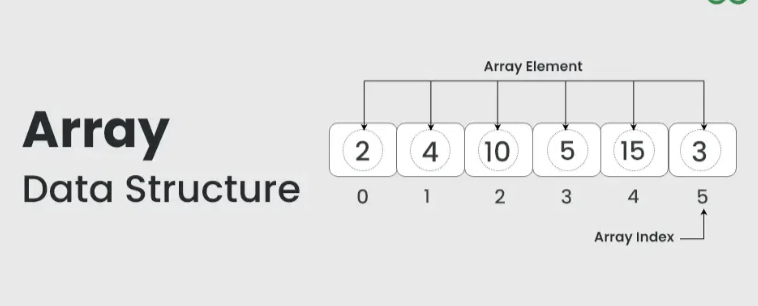
Array length property
The length property in JavaScript represents the number of elements in an array. It is an unsigned, 32-bit integer that is always numerically greater than the highest index in the array.
Key Characteristics
Zero-Based Indexing: Because arrays are zero-indexed, the
lengthis always one more than the last index.Automatic Updates: JavaScript automatically updates this property whenever you add or remove elements (e.g., using
push()orpop()).Writable Property: Unlike in many other languages, you can manually set the
lengthproperty to resize an array.
Common Uses
Getting Array Size: Accessing
array.lengthreturns the current count of elements.Truncating an Array: Setting the
lengthto a value smaller than the current one deletes elements beyond that new index.Clearing an Array: You can quickly empty an array by setting
array.length = 0.Accessing the Last Element: Use
array[array.length - 1]to retrieve the final item.Iterating: Frequently used as the limit in
forloops to process every element.
Behavior with Sparse Arrays
If an array is "sparse" (has empty slots), the length property reflects the highest index plus one, rather than the actual count of defined items. For example:
javascript
const sparseArray = [1];
sparseArray[5] = 10;
console.log(sparseArray.length); // Outputs: 6
Constraints
Range: The value must be a non-negative integer less than \(2^{32}\) (4,294,967,296).
Errors: Setting
lengthto a negative number or an invalid type (like a string that isn't a number) will throw aRangeError.
Basic looping over arrays
Looping lets you go through each element of an array and perform operations.
Example array
const numbers = [10, 20, 30, 40];
🔹 1. for loop (classic)
for (let i = 0; i < numbers.length; i++) {
  console.log(numbers[i]);
}
Full control (index, conditions)
🔹 2. for...of loop (clean & modern)
for (let num of numbers) {
  console.log(num);
}
Best for simply accessing values
🔹 3. forEach() method
numbers.forEach(function(num) {
  console.log(num);
});
OR arrow function:
numbers.forEach(num => console.log(num));
Very common in real projects
🔹 4. map() (returns new array)
const doubled = numbers.map(num => num * 2);
console.log(doubled);
Used when transforming data
🔹 5. for...in (not recommended for arrays)
for (let index in numbers) {
  console.log(numbers[index]);
}
Works, but mainly for objects
Assignment:
Step 1: Create an array of 5 favorite movies
let movies = ["Inception", "Interstellar", "Avatar", "Titanic", "Avengers"];
Step 2: Print first and last element
console.log("First movie:", movies[0]);
console.log("Last movie:", movies[movies.length - 1]);
Step 3: Change one value and print updated array
movies[2] = "Joker";  // Changing "Avatar" to "Joker"

console.log("Updated array:", movies);
Step 4: Loop through the array and print all elements
Using for...of (recommended)
for (let movie of movies) {
  console.log(movie);
}
Output (example)
First movie: Inception
Last movie: Avengers
Updated array: [ 'Inception', 'Interstellar', 'Joker', 'Titanic', 'Avengers' ]
Inception
Interstellar
Joker
Titanic
Avengers
- #arrays-in-js
- #array-methods
- #array-javascript-array-methods-map-filter-foreach
- #chaicode
- #javascript-arrays-arrays-in-javascript-javascript-arrays-tutorial-javascript-arrays-for-beginners-learn-javascript-arrays-javascript-fundamentals-javascript-programming-basics-array-indexing-javascript-javascript-array-length-property-javascript-for-loop-arrays-web-development-javascript-beginner-javascript-tutorial
Comments
Join the discussionNo comments yet. Be the first to comment.


